
A tablet is charging on the kitchen counter, and it's been sitting there since Tuesday. The Wi-Fi is connected, the password is written inside a drawer, and the whole thing still feels like someone else's kitchen.
That distance between owning a device and feeling at home with it is what people mean by digital literacy for older adults. Not whether the technology is in the house, but whether you can use it to do the things you want to do, without a small knot of dread first.
The good news is that the skills are learnable and they break into small pieces. You get to choose the order.
Table of Contents
- What Digital Literacy Means in Everyday Life
- Owning a Device Is Not the Same as Skill
- The Barriers That Get in the Way
- Learning One Task at a Time
- Spotting Scams Without Feeling Stuck
- Staying Connected Without Losing Control
- Pick One Task and Start This Week
What Digital Literacy Means in Everyday Life
Digital literacy is the ability to use a phone, tablet, or computer accurately and confidently to finish ordinary tasks. It's closer to learning a new washing machine than to learning algebra. Nobody is naturally gifted at either one. People get good by doing the same few actions until their hands know the way.
The scale of the learning gap shows up clearly in European data. Only 33% of people aged 65 to 74 had at least basic overall digital skills, compared with roughly 75% of people aged 16 to 24 and 25 to 34, according to Eurostat's digital skills statistics. Within that older group, 38% of men and 29% of women had at least basic skills, a gap of 9 percentage points.
The four areas behind the number
The European Commission's measure doesn't ask whether you own a device. It asks whether you can do four kinds of things, and each one maps onto a moment you'd recognize from your own week.
| Skill area | Everyday example | Simple first step |
|---|---|---|
| Finding and evaluating information | Comparing store opening hours on two websites | Check the date and the source before trusting a result |
| Communicating online | Sending a video call or message to a relative | Practice with one contact you already know |
| Creating digital content | Sharing a photo from a recent trip | Send one photo to a single trusted person |
| Using technology safely | Recognizing a suspicious text before tapping a link | Learn to pause and check the sender first |
Those areas overlap more than they look. Looking up store hours is information finding plus a small judgment about whether the page is current. A video call with a grandchild is communication plus a little content sharing when you turn the camera toward the garden.
The area that catches even confident users is evaluating what you find, especially anything health related. Researchers built a purpose-made digital-health-literacy questionnaire for older adults because reading a portal message or judging an online health claim asks for more than tapping the right icon (study in the Journal of Medical Internet Research).
A quick self check
Run through the four areas and ask which one you already handle without thinking. Then ask which single one would make this week easier. Hold onto that answer, because it becomes the task you'll practice.
Owning a Device Is Not the Same as Skill
The phone is charged on the kitchen table. A refill reminder appears. You still have to judge whether that message is real, find the pharmacy number, and finish the call without passing the phone to someone else. Those small decisions are the skill. The device is the tool that sits there while you make them.
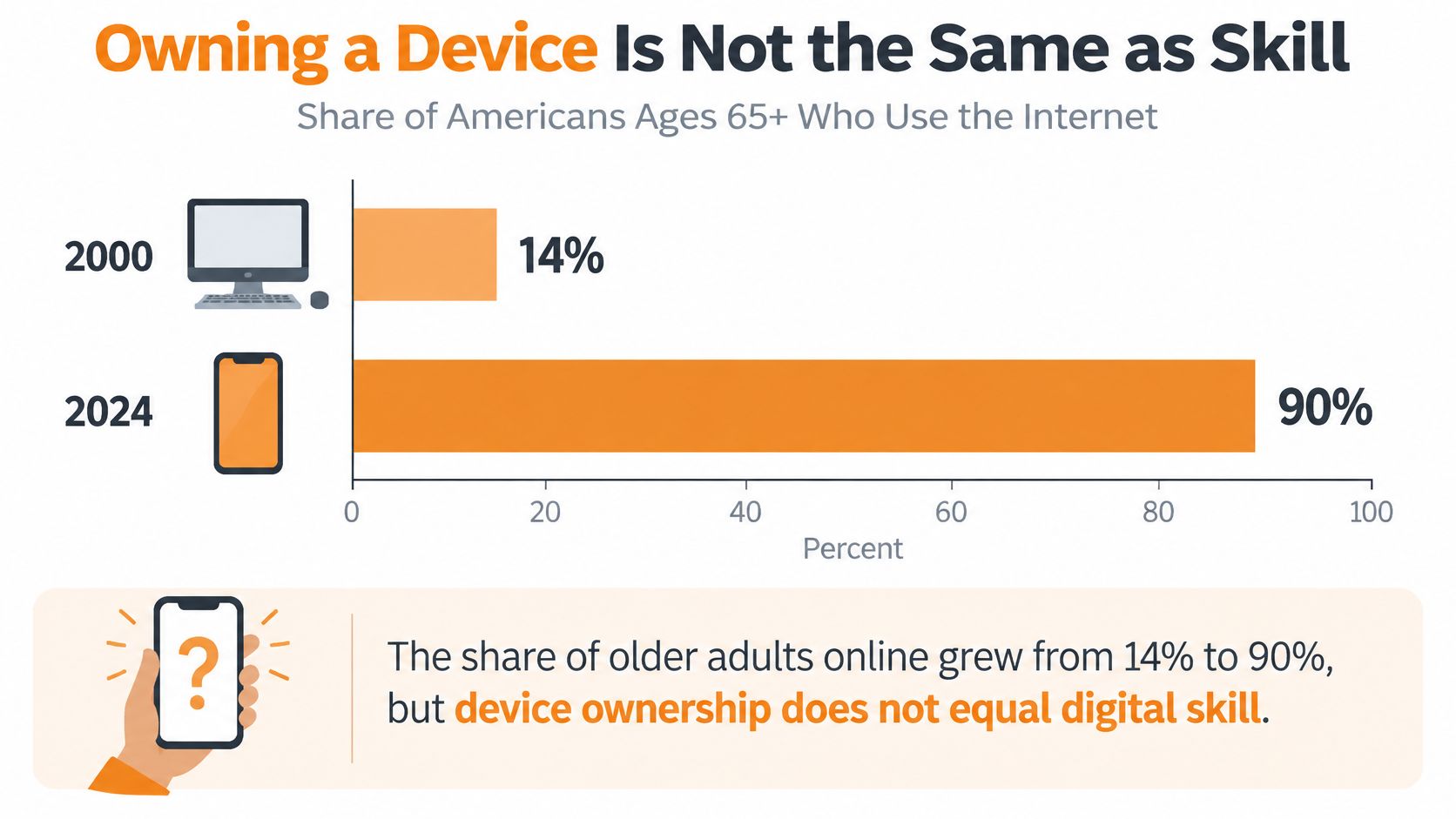
Pew Research Center reports that internet use among Americans aged 65 and older rose from 14% in 2000 to 90% in 2024, while use among adults aged 50 to 64 climbed from 46% to 98% over the same period (Pew Research Center internet and broadband fact sheet).
The access picture in numbers
| Measure | Value |
|---|---|
| U.S. internet use, adults 65 and older, 2000 | 14% |
| U.S. internet use, adults 65 and older, 2024 | 90% |
| U.S. internet use, adults 50 to 64, 2000 | 46% |
| U.S. internet use, adults 50 to 64, 2024 | 98% |
Read those rows as an access story, not a skill score. Far more older adults can get online now than in 2000. Getting online still does not tell you whether a Tuesday task gets finished without stress.
A phone works like a stocked kitchen. The pots do not cook dinner. You choose the task, follow a short set of steps, and check the result before you stop. A simple routine on a familiar phone often beats a new gadget you have to relearn every season.
Use one decision routine the next time a screen asks something of you:
- Name the single task, such as a refill, a message, or an appointment.
- Pause before you tap a link or a button you did not expect.
- Finish the steps yourself. If a helper is nearby, ask one question, then take the phone back.
A helper who stays on the screen through the whole task keeps the habit in their hands. Step back once the steps are clear, and the same routine becomes yours to repeat. Comfort grows from that repetition, not from owning a newer device.
The Barriers That Get in the Way
It helps to know that the obstacles have been studied carefully, and that almost none of them are about intelligence. A systematic review pulling together 96 publications found that older adults' digital engagement is best explained by three forces, grouped as capability, opportunity and motivation (systematic review in the Journal of Medical Internet Research). Capability covers things like vision, hearing, memory and practice with step-by-step procedures. Opportunity covers the device itself, the technical help around you and whether anyone nearby can answer a question. Motivation covers whether the tool looks useful and whether you believe you can manage it.
| Barrier | What it can look like | What helps |
|---|---|---|
| Capability | Small text, slow reactions or trouble remembering steps | Larger text, one task at a time and a written card |
| Opportunity | Too many apps, no device support or nobody nearby to ask | A simpler interface, a set up session and a helper to call |
| Motivation | Feeling the tool is not useful or doubting you can succeed | Tying the skill to a real task and celebrating small wins |
A capability barrier feels like an impossible task when it's really a font size. Shrinking text, crowded menus and buttons placed a hair apart can turn "check the weather" into a hunt. Turn on larger text, increase display contrast, and the same task becomes ordinary again.
A useful rule: if a task takes more than three steps the first time, simplify the task, not the person.
Opportunity barriers are about surroundings. A tablet loaded with a dozen apps and nobody to ask is a very different object from a tablet with three apps and a neighbor who answers the phone. Motivation is the quiet one. A review of 59 studies found that tools seen as too complex, or unrelated to an immediate need, tend to get abandoned, while steady support from professionals and peers builds confidence (review in Humanities and Social Sciences Communications). The same review names cost, technology anxiety and internalized ageism as reasons people pull back.
Barriers rarely arrive alone. Someone may need a bigger font, one saved routine and a patient helper all at once, and that's normal rather than a sign of failure.
Learning One Task at a Time
One-off classes fade fast. What holds is practice tied to something you want to do, and there's a clear example of it in a 2022 Singapore study of a volunteer-led, one-on-one, home-based program for community-dwelling older adults (Singapore digital literacy trial in the Journal of Medical Internet Research). Volunteers didn't teach "computers". They taught specific goals the participant chose.
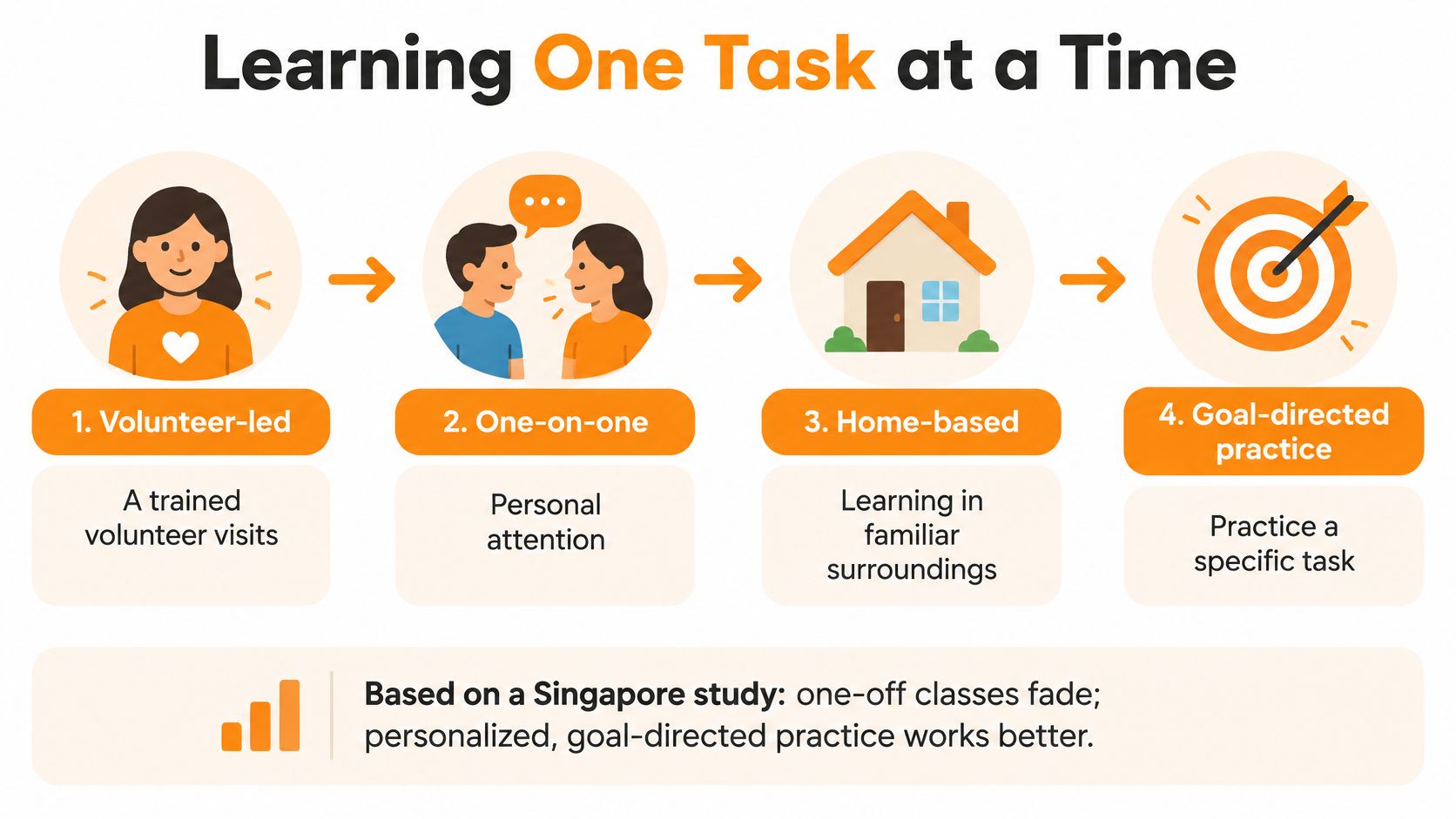
Participants were scored on a 13-item smartphone-literacy scale covering four practical domains. Social meant staying in touch with people. Pastime meant using the phone for relaxation or entertainment. Reassurance meant feeling safer in an emergency. Practical meant getting news and handling services such as government or banking tasks.
A six step routine that sticks
- Choose one goal that matters this week. Video calling a sibling counts. So does checking a bus schedule.
- Open the actual app, with a helper or a written card beside you. Practicing in a demo teaches the demo, not your phone.
- Do the task once, slowly, naming each button out loud. Naming builds the mental map faster than watching someone else tap.
- Repeat it on two or three different days. Spacing is what moves a skill from "I did it once" to "I know how".
- Write down the one thing that confused you and ask about it. One question per session keeps the pile from feeling endless.
- Move on only when the task feels routine. That takes longer than a single class, which is exactly why it works.
The payoff was measurable. Compared with the control group, the intervention group improved by a mean difference of 2.28 points, with a 95% confidence interval of 1.37 to 3.20 and P<.001. On average, participants learned about one additional essential function, which is why that domain showed the largest gain.
A 2024 scoping review of 30 articles published between 2014 and 2024 reached a compatible conclusion, describing digital literacy as a collection of skills built through education and repeated practice rather than one isolated ability (review in the Proceedings of the Association for Information Science and Technology). It also flagged unfamiliarity, emotional barriers, limited access to devices and physical constraints as recurring obstacles.
If a portal login is on your practice list, our walkthrough on how to access your health records breaks the steps into that same one-task-at-a-time shape.
The signs the routine is working are small and reliable. Fewer pauses before tapping. Less apologizing for asking. A day when you open the app and try the next task on your own.
Spotting Scams Without Feeling Stuck
A text arrives at 4 p.m. It says a grandchild is stranded and needs money today. Your chest tightens before you finish reading. That squeeze is the scam's real tool, and the choice you make in the next minute is a skill you can rehearse, the same way you rehearse a login.
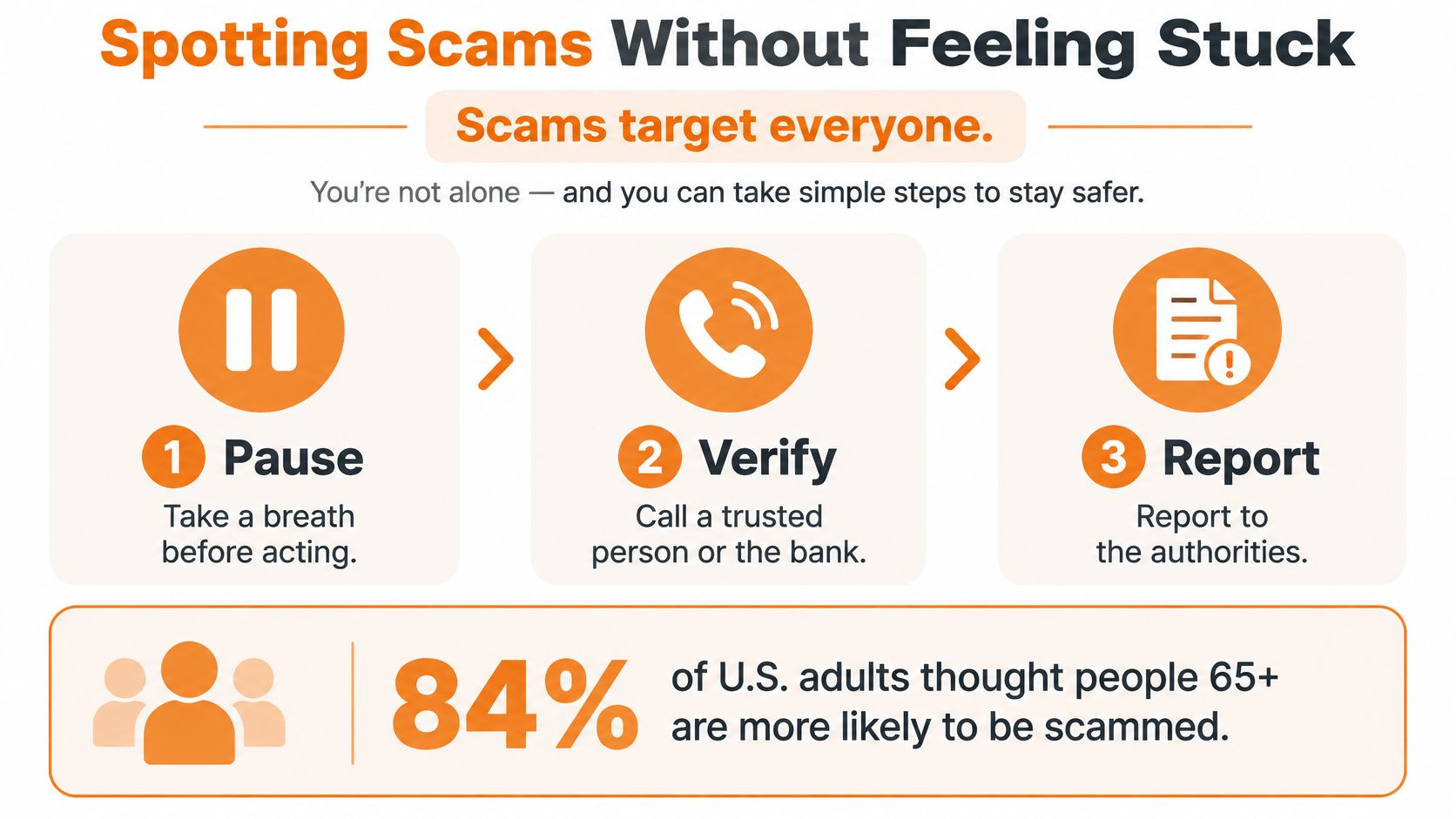
Pew Research Center reported in 2025 that 84% of U.S. adults considered people aged 65 and older very or extremely likely to fall victim to online scams, while only 64% of older adults said they knew at least a fair amount about avoiding them, compared with 78% of adults aged 18 to 29 (Pew Research Center's 2025 scams report). The gap is about pressure, not intelligence. Knowing the signs and doing the right thing under pressure are separate skills, so practice matters more than recognition alone.
Three scenarios worth rehearsing
A message claims a grandchild is stranded and needs money today. A caller says they are from the bank, reads out part of your account number, then asks for the verification code just texted to you. An email says your password was reset and offers a button to undo it, though you never asked for a reset.
Each one works by creating urgency and cutting you off from a second opinion. The defense is a short decision routine you have already practiced, not a longer list of red flags. A helper can sit nearby. You place the call, you decide what to say, and you stop if the request feels wrong. Handing over the phone "just this once" trains the wrong person.
The pause and verify routine
- Pause and don't reply. Urgency is the tool being used on you.
- Reach the person through a number you already have saved. Not the number in the message.
- Never share a code or password. A real bank or clinic won't ask for one.
- Check the sender and any link before tapping. Look at the full address, not the display name.
- If something was shared, change that password and tell a trusted person. Speed matters more than embarrassment.
Mistakes happen to careful people. Reporting one quickly limits the damage, and feeling foolish about it is normal rather than a personal failing.
Privacy has boundaries worth naming out loud, too. Decide in advance what a relative, clinician, or support worker may see, and which accounts stay yours alone. Our guide to identity theft protection for seniors covers the practical side of locking down accounts before anything goes wrong.
Staying Connected Without Losing Control
The most rewarding part of these skills isn't efficiency. It's people. A study of 505 Chinese adults aged 50 to 70 found a statistically significant positive association between digital literacy and social connectedness, with a reported regression coefficient of β = 0.22, a 95% confidence interval of 0.16 to 0.27 and P<.001 (study on digital literacy and social connectedness). The analysis pointed to two pathways, fewer perceived barriers and greater social integration. It's an association rather than proof that one causes the other, but it fits what many notice in their own week.
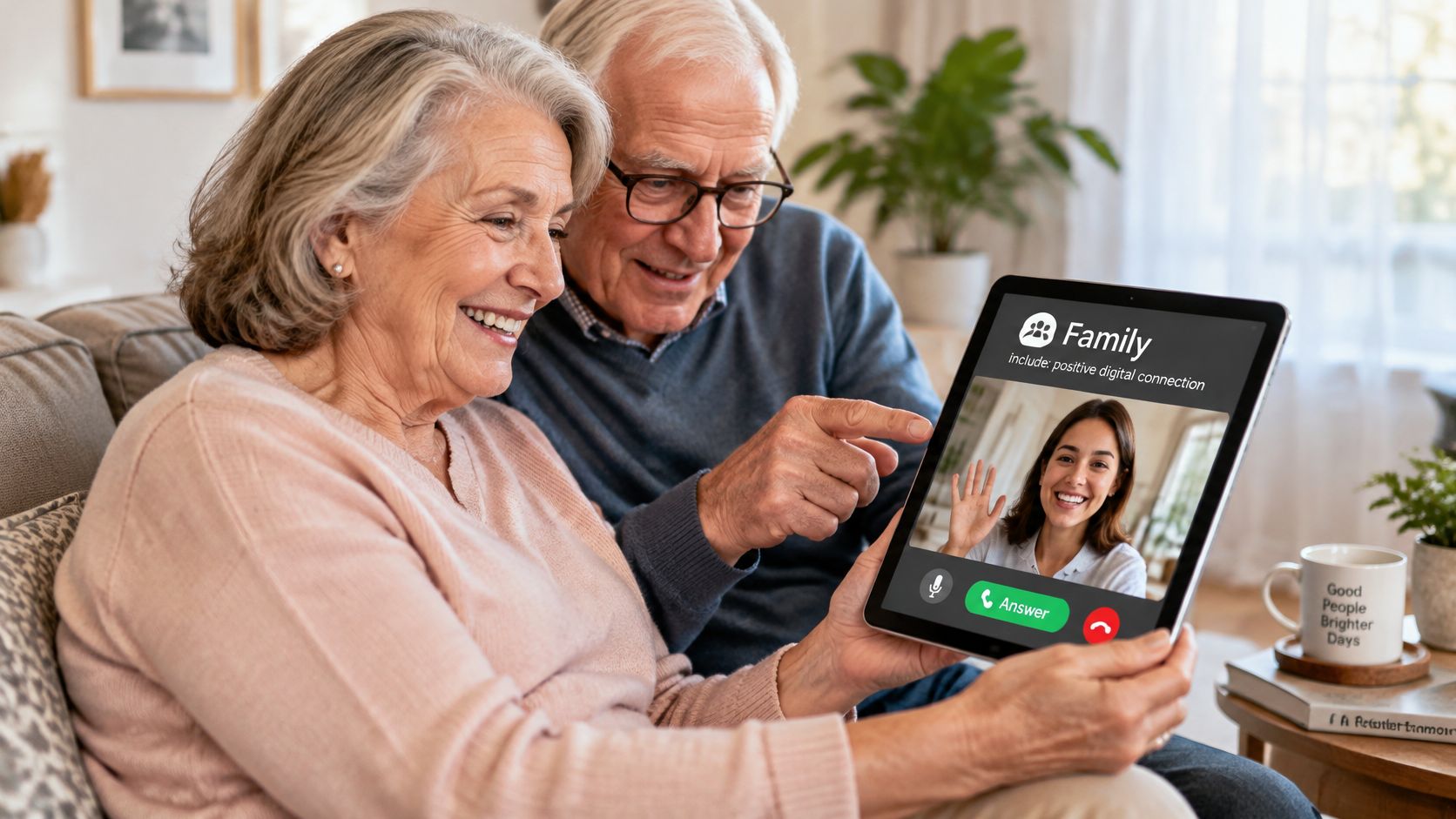
Picture the ordinary versions of this. A Sunday video call with a daughter in another state. A shared photo album where cousins add pictures of a new baby. A group chat that keeps a book club going between meetings. A family calendar everyone can read, so nobody has to be the memory for the whole household.
How to help without taking over
Helpers get more out of these moments when they work as a partner rather than a technician. A few habits do most of the work.
- Ask before changing a setting. Rearranging someone's home screen "to help" costs them the map they'd built.
- Explain the why, once. Knowing that the icon opens a camera makes the next app easier to guess.
- Let the older adult press the buttons. Watching builds recognition. Tapping builds skill.
- Step back when you hear "I've got it." That sentence is the goal, not a brush off.
- Offer options instead of instructions. "Do you want to try the call now or after lunch?" keeps the decision where it belongs.
Supported autonomy means the person using the device makes the decisions, and the helper brings choices, patience and a chair.
Plan the fallback before you need it. Write a phone number on a card near the tablet in case a video call drops. Keep a second way to reach each other, such as a landline or a neighbor who'll knock. Choosing between a home phone and a cell phone as your backup line is worth ten quiet minutes.
Pick One Task and Start This Week
Digital literacy grows from practical tasks that matter to you, and confidence arrives faster when the task is one you'd choose anyway. So pick a single item from the first table. Sending one photo to a trusted person is a fine start. So is comparing store hours on two websites.
Then run the same simple loop.
- Choose the task and say it out loud. A named task is easier to finish than a general intention.
- Set a time on three different days. Short sessions beat one long one.
- Practice with a written card or a helper nearby. Support that's available is different from support that takes over.
- Write down one question for next time. Questions are how a routine gets smoother.
By the weekend, notice what's changed. Maybe you no longer hunt for the camera icon. Maybe you stopped apologizing before asking. That's the whole method, and it works the same way for families and care teams introducing a new tool to someone they love.
For a guided version, Rx360 is a wellness platform for independent older adults who want to age in place. It's organized into three areas, Health Insights, Smart Technology and Connected Care, and its Family Connection feature is built for keeping loved ones close when they're far away. It's one option among many, alongside library sessions, community classes and the helper down the hall.
Your first step this week is the smallest one: choose the task, write it on a card, and put the card where you'll see it tomorrow morning.
Rx360 brings health insights, supportive technology and trusted connections into one place, so the everyday routines you already value stay easy to manage. If this guide left you with one task you'd like to practice with a little more support around you, that's exactly what the platform is built for. Visit Rx360 to see how Health Insights, Smart Technology and Connected Care fit together.
Lower-Risk Medication Plan Checklist
Below is a practical checklist and step plan you can implement into your daily life:
-
List all medications
Include prescriptions, over-the-counter drugs, supplements, sleep aids, creams, patches, eye drops, and inhalers.
-
Mark fall-risk drugs
Flag medicines that cause dizziness, sleepiness, confusion, blurred vision, low blood pressure, or low blood sugar.
-
Ask for a medication review
Bring the list to a pharmacist or prescriber.
-
Review after any warning sign
Request a new medication check after a fall, near-fall, new prescription, dose change, dizziness, or confusion.